Wire routing
NodeCraft draws wires in three main ways. Choose one from the Routing section of the NodeCraft dropdown.
The three styles
Section titled “The three styles”| Style | What it looks like | Routes around nodes |
|---|---|---|
| Default | Unreal’s native curved splines | No (Unreal’s own behaviour) |
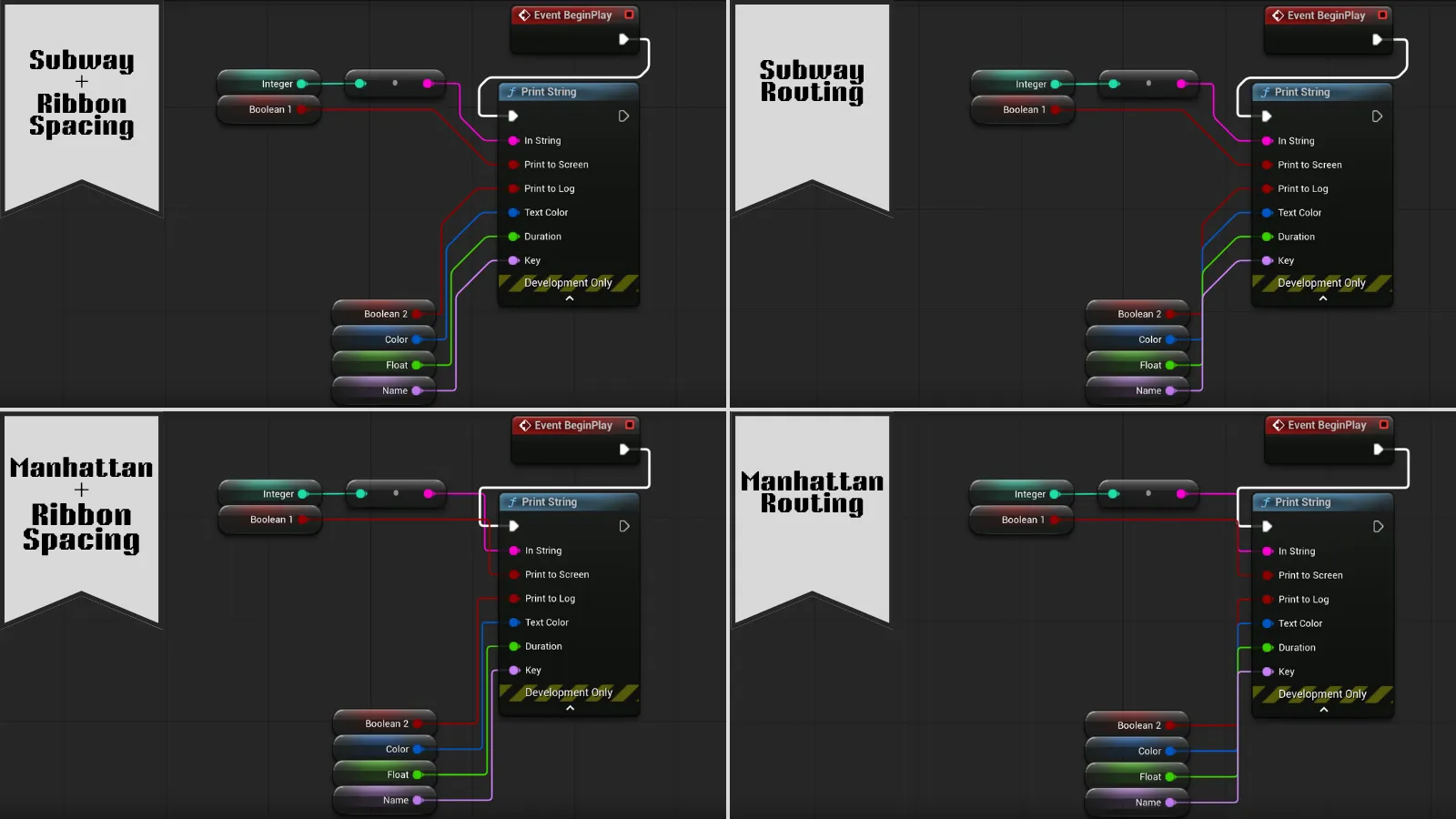
| Manhattan | Straight lines with 90° turns | Yes |
| Subway | Straight lines with 45° and 90° turns, like a transit map | Yes |
Manhattan and Subway look for a clear path around the nodes in the way. If the only way around is a long detour, they go straight through instead, because a short wire crossing a node is easier to read than one that wanders across the graph.
Wires are designed to stay still while you pan and zoom. They only re-route when nodes actually move.
Theme Default vs. pinning a style
Section titled “Theme Default vs. pinning a style”Each theme comes with the routing style it was designed around:
| Theme | Routing |
|---|---|
| Neon | Subway |
| Liquid Glass | Subway |
| Command | Subway |
| Aetherial | Manhattan in Blueprints, Subway in materials |
| Atelier | Sketch |
| UE_Default | Default |
With Theme Default selected, routing follows the theme and changes when you switch theme.
Selecting a specific style pins it. The pinned style stays through theme switches and editor restarts, because the way you like your wires is usually a personal preference rather than part of a look. To go back to following the theme, select Theme Default.
Blueprint and Material graphs each have their own routing setting.
Wire spacing
Section titled “Wire spacing”When several wires would run along the same path, Wire Spacing spreads them into parallel lanes so each wire stays visible:
- Off: every wire follows its exact route, so shared paths overlap.
- 1: 6-pixel lanes. This is the default.
- 2: 12-pixel lanes.
Only the turns move. Straight runs stay straight, and a node with a single output keeps its wire exactly where it was. Spacing applies to Manhattan and Subway wires.
Wire look
Section titled “Wire look”Wire thickness, corner rounding, glow and colour are part of each theme. You can change them in the theme’s Routing settings. See Theme settings.